Tags
Located in the Events Panel, the Tags container will display all tagged events from users within Perspective VMS.
A user will have two methods to open the events container. A quick view, known as a Pop-Up Preview by clicking on the Messages Button, or the full detailed view known as the Information Panel by expanding the left facing arrow adjacent to the button.
Tags - Pop-Up Preview
From the Side Panel, the Pop-Up Preview for Tags can be selected by clicking on the button. The Pop-Up Preview will show selected information and a thumbnail image.
_508x352.png)
Characteristics of the Pop-Up Preview
- Click Persistance: When clicking on an alert it will remain "popped-up" until clicked a second time or until another alert is clicked.
- Download: If attached to an Image Extraction this will allow the user to download the extraction from here.
- Edit Tag: Allows the user to edit theTag.
Tags - Information (Info) Panel
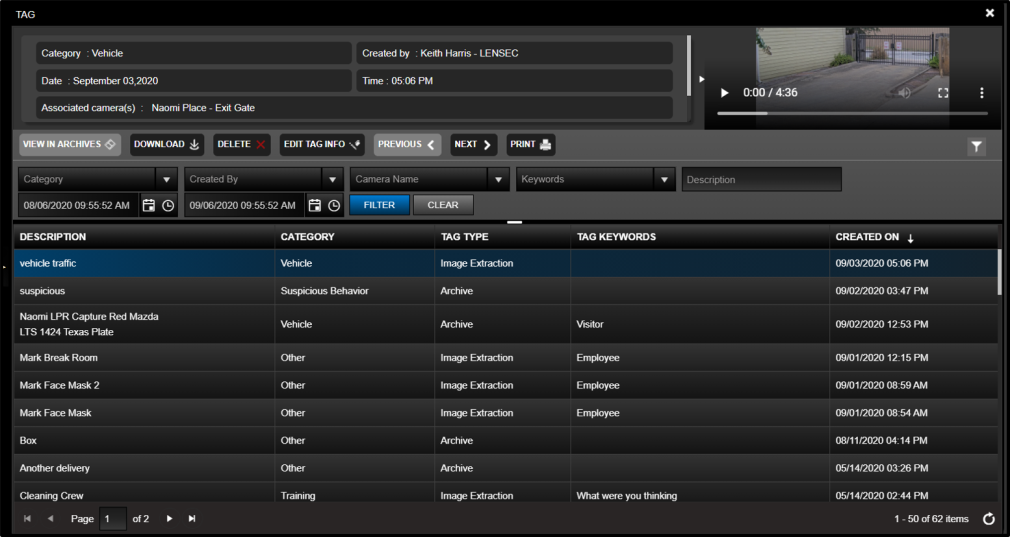
The information panel for Tags provides a detail view of the event selected, a video player (which can be re-sized), and a list view of all viewable alerts for the user.
_1003x446.png)
Tags Details
The Details section lists the tag and camera along with relevant description information.
_802x223.png)
Navigation Bar
The Navigation Bar allows users to focus on the selected alert from the list and perform an action.
_808x30.png)
The action definitions are listed here below:
- View In Archives: If the original archives are still stored in the system a user can navigate to that camera and point in time to view the original archive footage.
- Download: If associated to an extraction the user can download from this list.
- Delete: A user/administrator must have full control permissions to delete tags.
- Edit Tag Info: Users can edit tag information and categories.
- Previous/Next: Allows the user to cycle through alerts
- Print: Allows the user to print the list information below in a report.
Tags List
The alert list allows users to search, filter, and sort on all accessible alerts. Additional filter options are available by selecting the filter icon located on the navigation bar. Users can sort on the additional column headers.
_1008x329.png)
*Note that the List/Detail sections can be re-sized by using the Handle in the middle navigation bar. Here below is the same image as above with the List View expanded.
Next Topic: Image Extractions
 PDF DOWNLOADS


_168x52.png)

